Clearing Your Cache in Google Chrome
Follow these steps to clear your cache in Google Chrome. This can sometimes help with issues loading websites correctly.
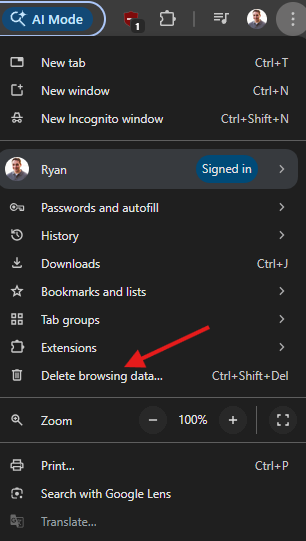
Step 1) Click on the three dots in the top right:

Step 2) Choose "Delete Browsing Data..."
Step 3) Click on "More" than choose "All time." Ensure all the checkboxes as shown below are selected. Then hit "Delete data"
Related Articles
Google Workspace - How to Create an Admin Account Without a License
Here's a brief guide on how to create a Google Workspace admin account for use by TechPeer. o If you’re creating an account for us make sure that you’ve added a Cloud Identity Free subscription to your Google Workspace account if you don’t have that ...
Google Workspace - How to Send an Email in Confidential Mode
Send messages & attachments confidentially It's important to note that you need to use the Gmail Webmail Client to take advantage of confidential mode. This feature will not work inside of other email clients like Mac Mail, or Outlook. On your ...
Setting Up Two Factor Authentication (2FA) With Your Microsoft 365 Account
MFA (Multi-Factor-Authentication) or 2FA (2-Factor-Authentication) is a way to increase security to the accounts you sign into. It adds an additional layer of security by requiring sign on with the regular username and password, and an additional ...
3CX - How to Schedule an Audio or Video Conference in Version 18
How to schedule an audio or video conference First you'll need to log into the 3CX web client or use the 3CX desktop app. If you don't know your password for the 3CX web client, or require help setting up the desktop app you can contact TechPeer ...
Setting Up Outlook on Your Mobile Device
Outlook - How to Setup on a Mobile Device This guide will walk you through setting up the Outlook mobile app on your device. 1 Install the Outlook mobile app The first step is to install the Outlook mobile app on your mobile device. If you have an ...